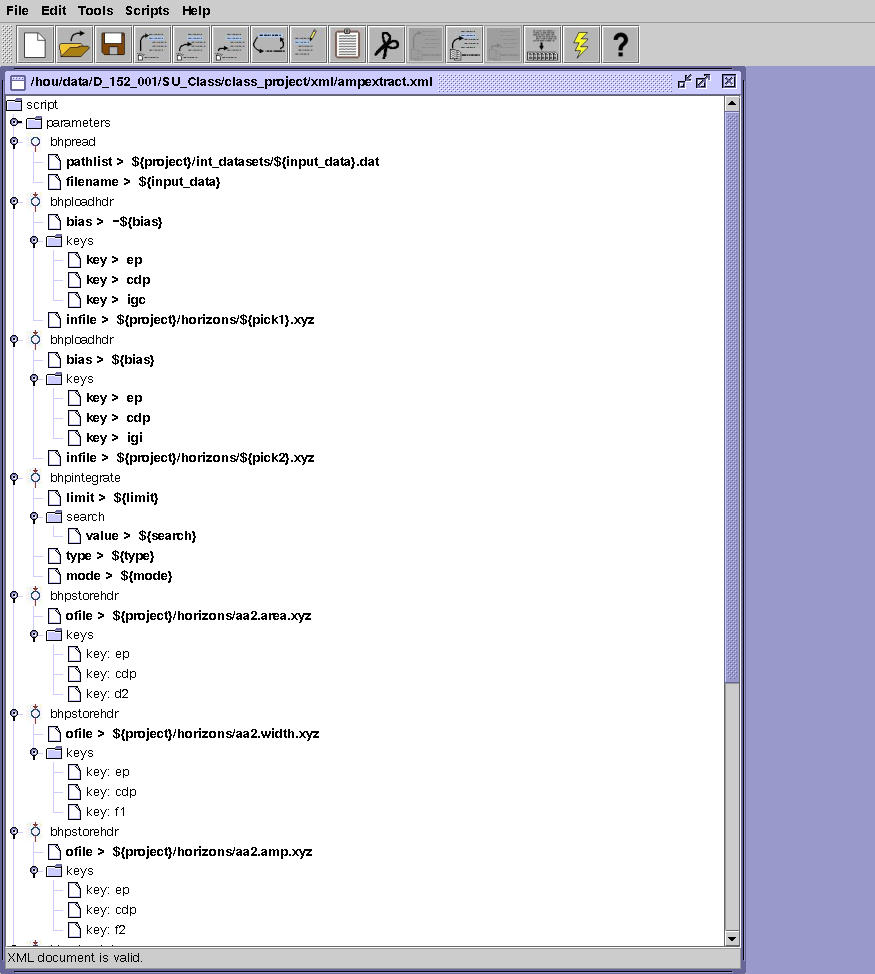
Script Editor – Building a Workflow
You can start the script editor from MB2. Select Applications, Seismic Unix, SU Production Environment. Enter script_editor in the xterm window.
Click on the “blank sheet” icon to Make a new XML File.
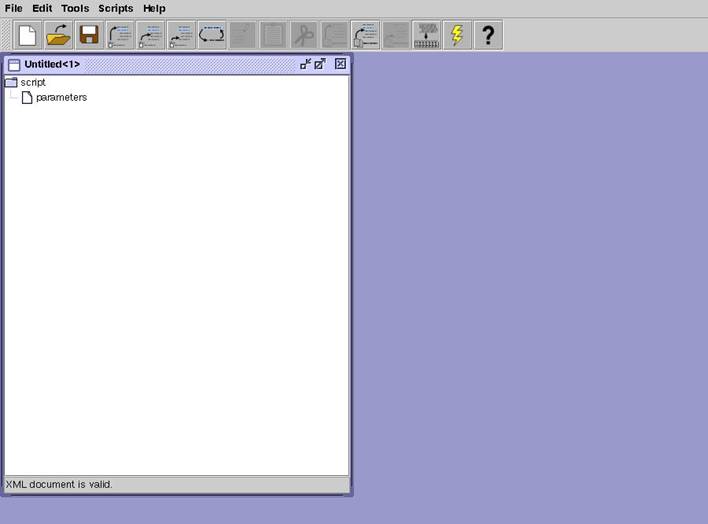
We want to build a re-usable XML script that combines two example scripts: load_picks and ampextract. First we want to define all necessary parameters. After the script is working, we just have to plug in new values for the parameters and re-run. First look at the two scripts and make a list of required parameters.
Parameter Name Usage
project Points to top-level directory
input_data Name of the input dataset
pick1 Name of the top horizon
pick2 Name of bottom horizon
key1 Input data primary key
key2 Input data secondary key
search bhpintegrate search value
limit bhpintegrate limit value
mode bhpintegrate mode value
type bhpintegrate type value
event Major name of output events, e.g. event.area, event.width etc
Now we need 11 XML parameters. Click the icon next to Parameters with MB3, then select Insert Sub-item, then parameter.
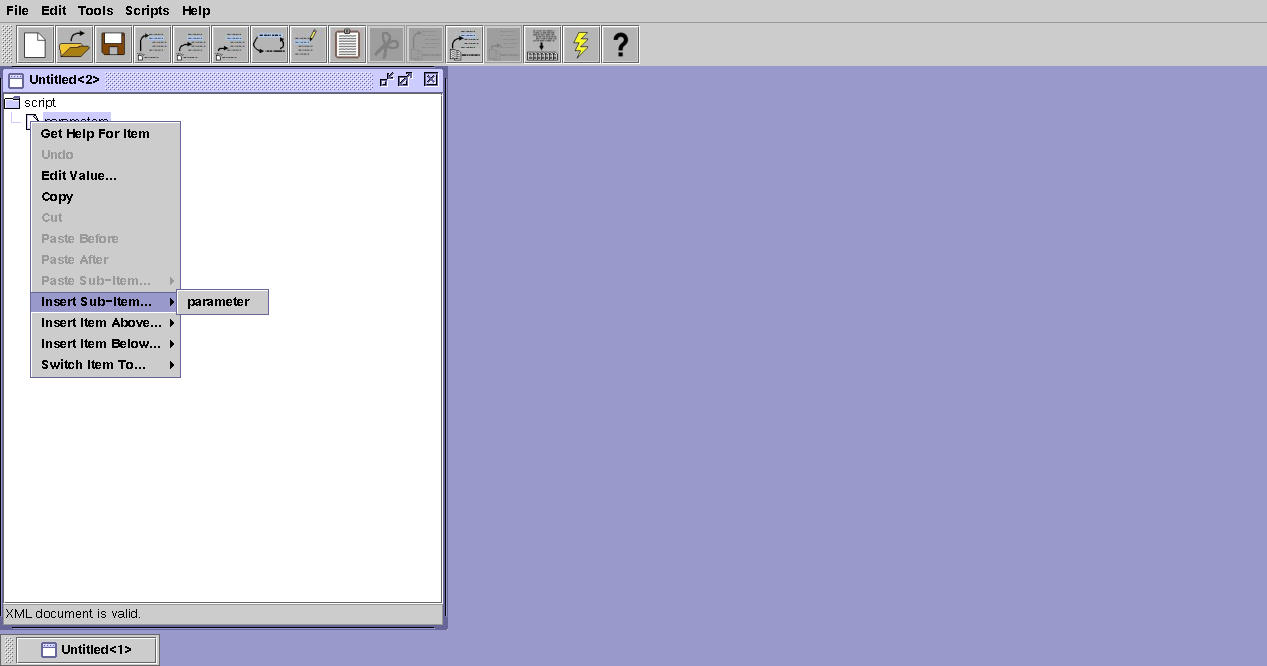
Repeat this sequence 4 or 5 times. Then click the icon next to Parameters.
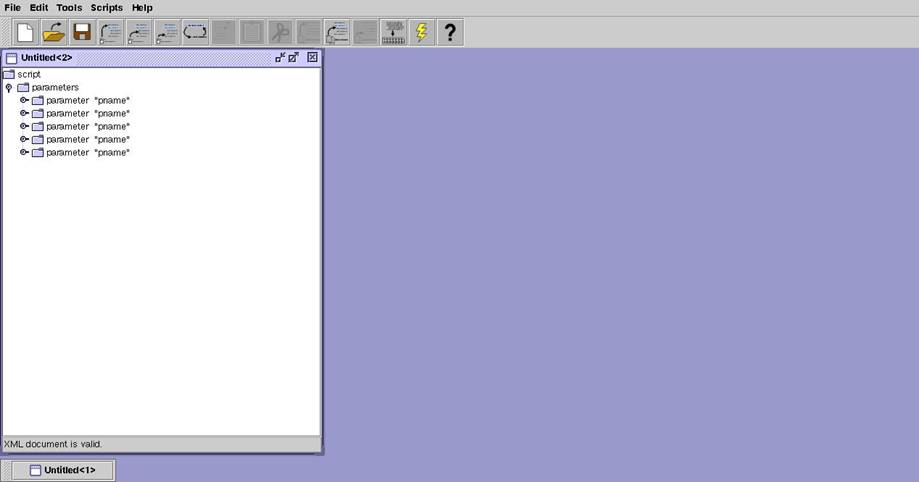
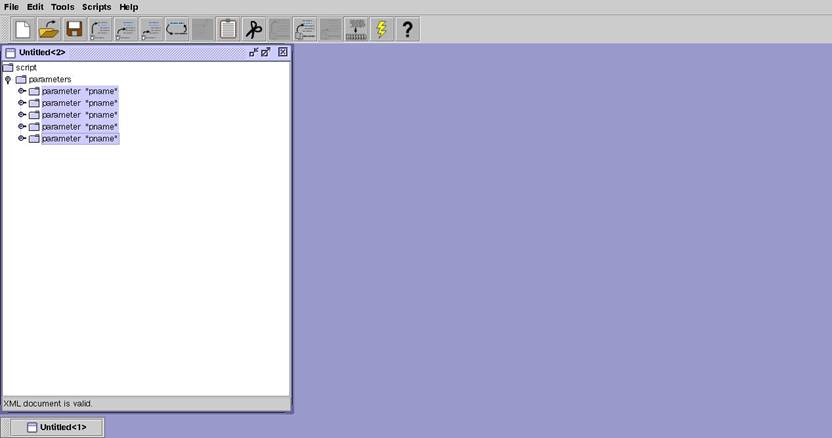
You can see that you now have 5 parameters. Next click the first parameter with MB1, then use shift, MB1 on the last parameter to select all of them.
Now click the last parameter with MB3 to see the next menu.
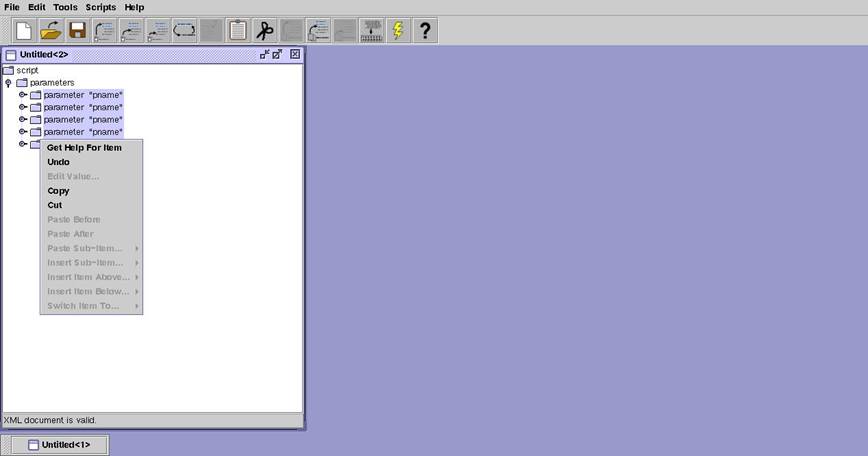
Now select Copy, then click MB1 on the last parameter to select it, and then MB3
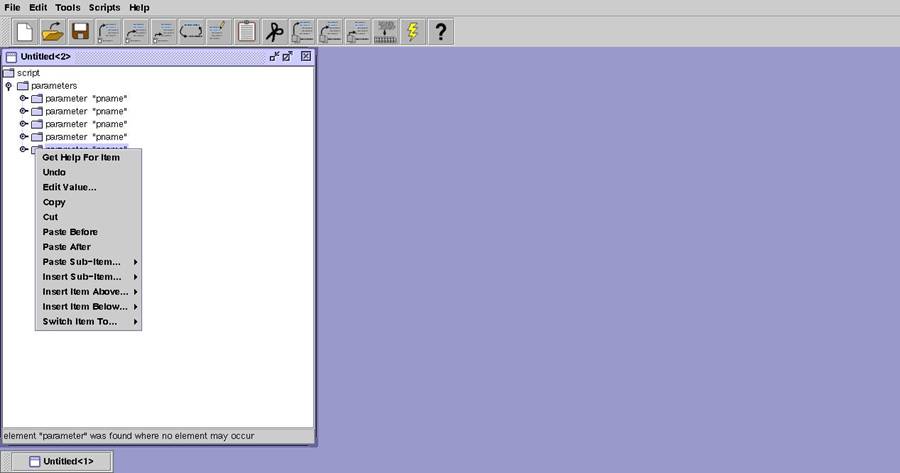
Then Paste After.
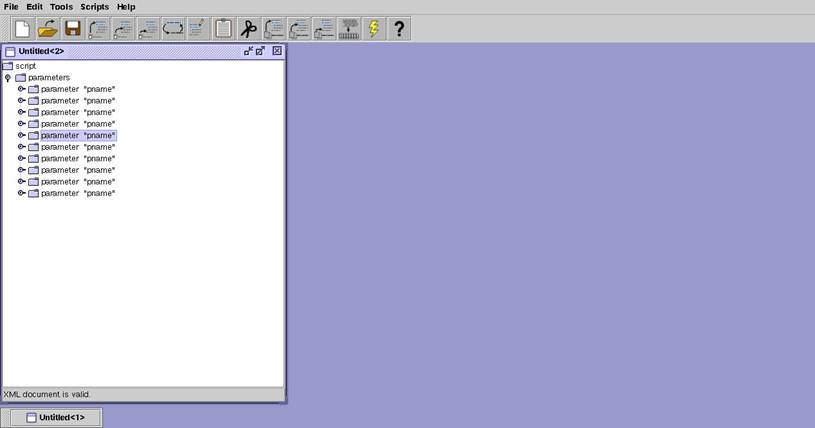
Add one more parameter, then double-click Parameters.
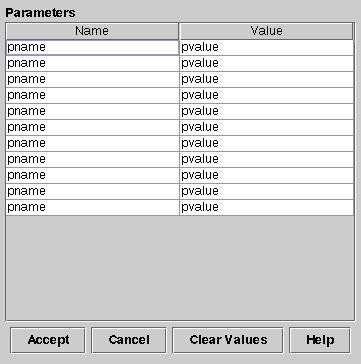
Now fill in parameter names and click Accept. Then click the icon next to Parameters.
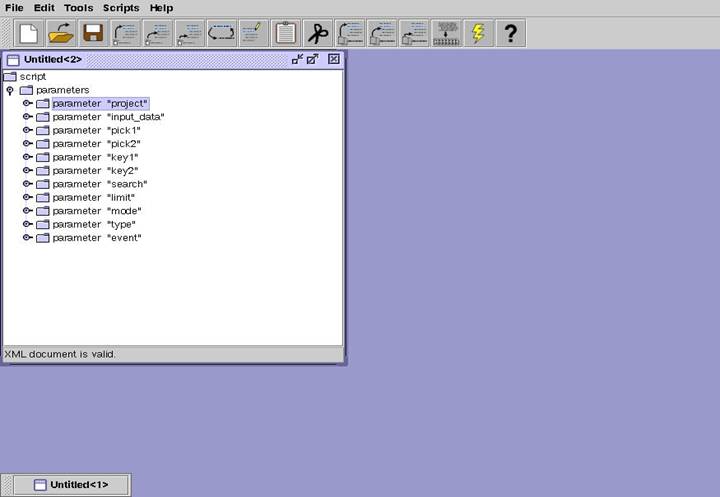
Now select parameters with MB1, then click MB3.
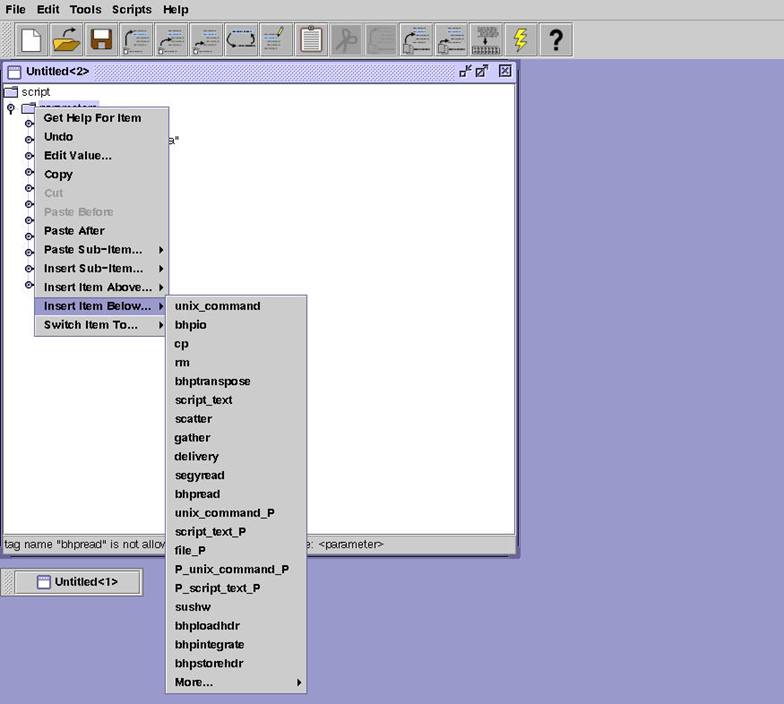
Select bhpread to add it next in the workflow. Then add two copies of bhploadhdr, then bhpintegrate, then six copies of bhpstorehdr. Click the diskette icon to save what you have done so far. Navigate to your ‘username’/xml directory and save the script as ampextract.xml. Close your session (X), and re-open it.
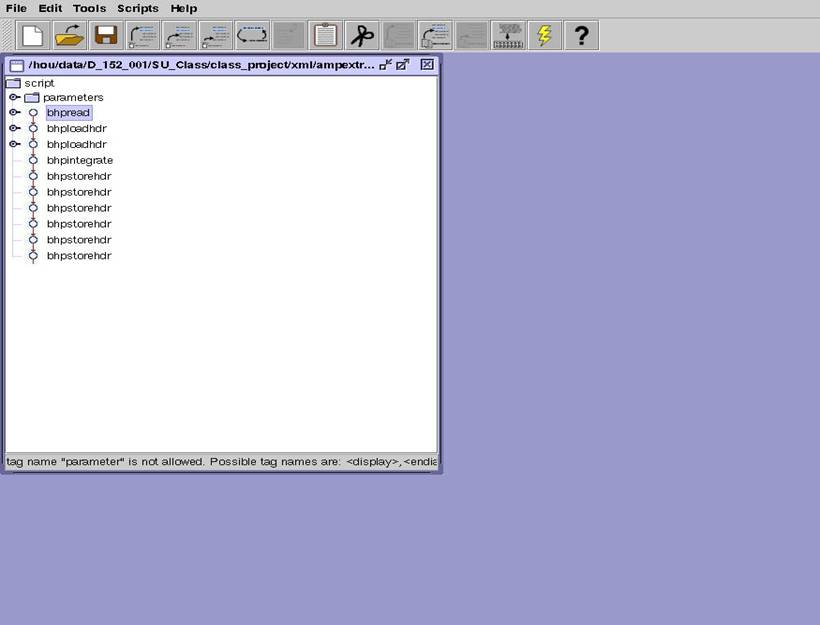
To explain more about how we have filled in the script thus far, filling in the items in a script consists of two basic mouse clicks. Use MB1 to select the point at which you want to add something (causing that item to be highlighted). Then click MB3 to see your choices at that point. Choosing Insert Item Above… or Insert Item Below… adds an item that is of “equal rank”. Choosing Insert Sub-Item… adds an item that “belongs” to the highlighted item. For example, to insert another BHP-SU command above or below an existing one, choose Insert Item Above… or Insert Item Below. To add parameters for a particular program, choose Insert Sub-Item. You can continue inserting items until all commands and parameters are done. Then, to fill in parameter values, you highlight a parameter, and then click MB3, and then choose Edit Value. When you edit a parameter that is a choice, e.g. a trace header, you will see a list to choose from. Whne you edit a parameter that has unlimited choices, you enter a value. If the value you are entering refers to one of the “script parameters” that are defined at the top of the script, you should enter it as ${name}. Part of the filled-in script is shown below.